Everything you need to get productive with Script Tools Library: installing, starting the trial or activating a license, touring the main window, understanding the RISK headers, and building your own script collection. Ten minutes, start to finish.
There is no installer, and that is on purpose. Script Tools Library ships as a single zip:
D:\Tools, a USB stick. The folder is the whole application: settings, scripts and notes all live inside it.LaunchScriptsLibrary.exe from that folder. Nothing is written to the registry and no background service is installed.On first launch you'll see the Get started welcome dialog. It offers two paths: enter your email address to start the 15-day free trial, or click "I already bought it" if you purchased a copy on itch.io. Both are covered in the next section.
In the welcome dialog, enter your email address and confirm. The full application unlocks for 15 days — every feature, all 25 included tools, nothing held back. The status badge in the main window keeps you posted, e.g. "Trial — 15 days left".
Click "I already bought it" in the welcome dialog. You can activate with your itch.io download link/key or with your serial. Once activated, the trial badge disappears and the copy stays licensed on this machine.
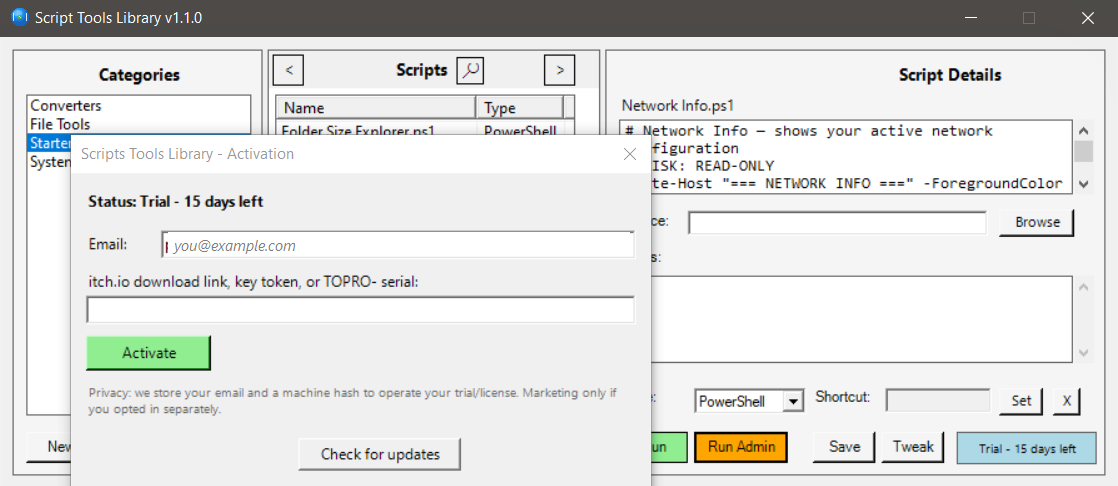
Not purchased yet? The product page is at toprogos.com/stl.html, and the store page is toprogos.itch.io/script-tools-library.
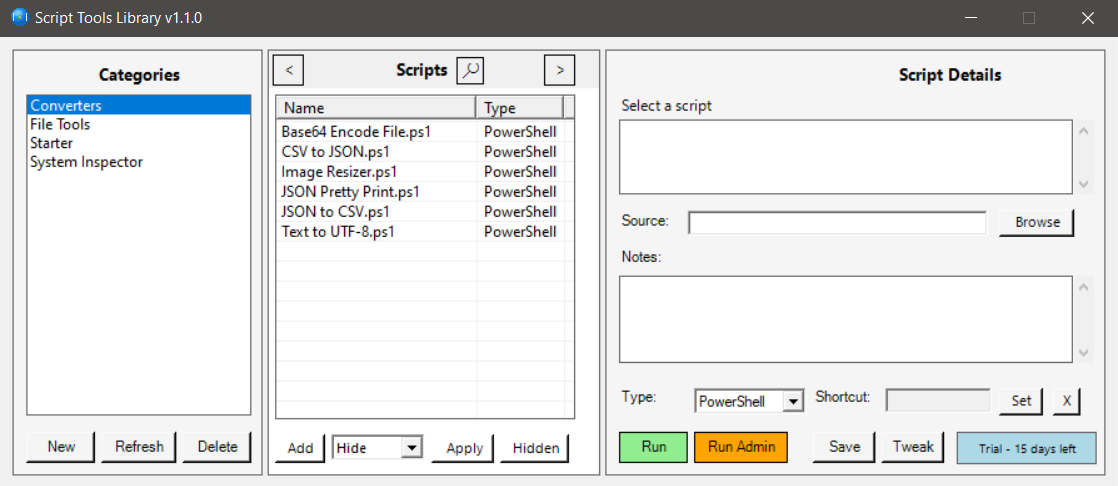
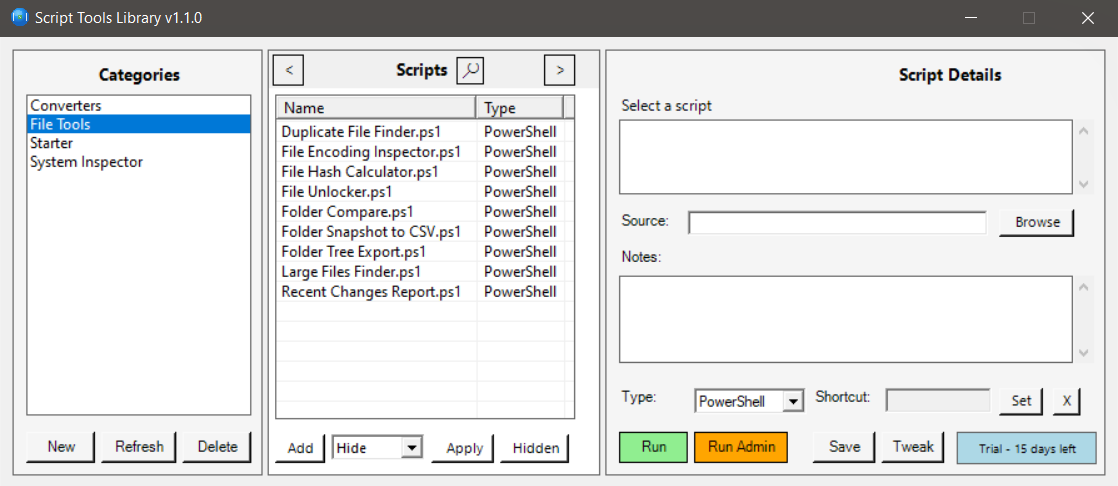
Everything happens in one window, split into three panels:
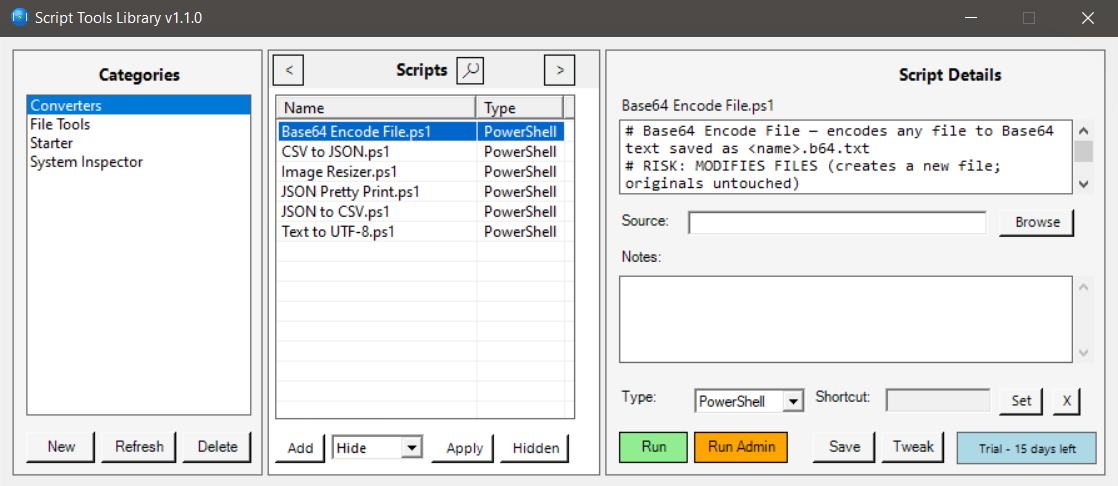
# RISK: header — see section 4), the Source field, a free-form Notes field, a Type dropdown, and a Shortcut field for a per-script keyboard shortcut.
Below the details pane sit the action buttons: Run green, Run Admin orange, Save (stores your edits to notes, type, shortcut) and Tweak (open the script for editing). The status badge in the window shows your license state, such as "Trial — 15 days left".
Script Tools Library's safety philosophy is simple: you should never run code you haven't looked at. The application is built to make looking easy, not to make trust automatic.
# RISK: header: a one-glance statement of what the script touches and what could go wrong. A read-only report and a script that closes processes carry very different RISK lines, and the header tells you which one you're holding.
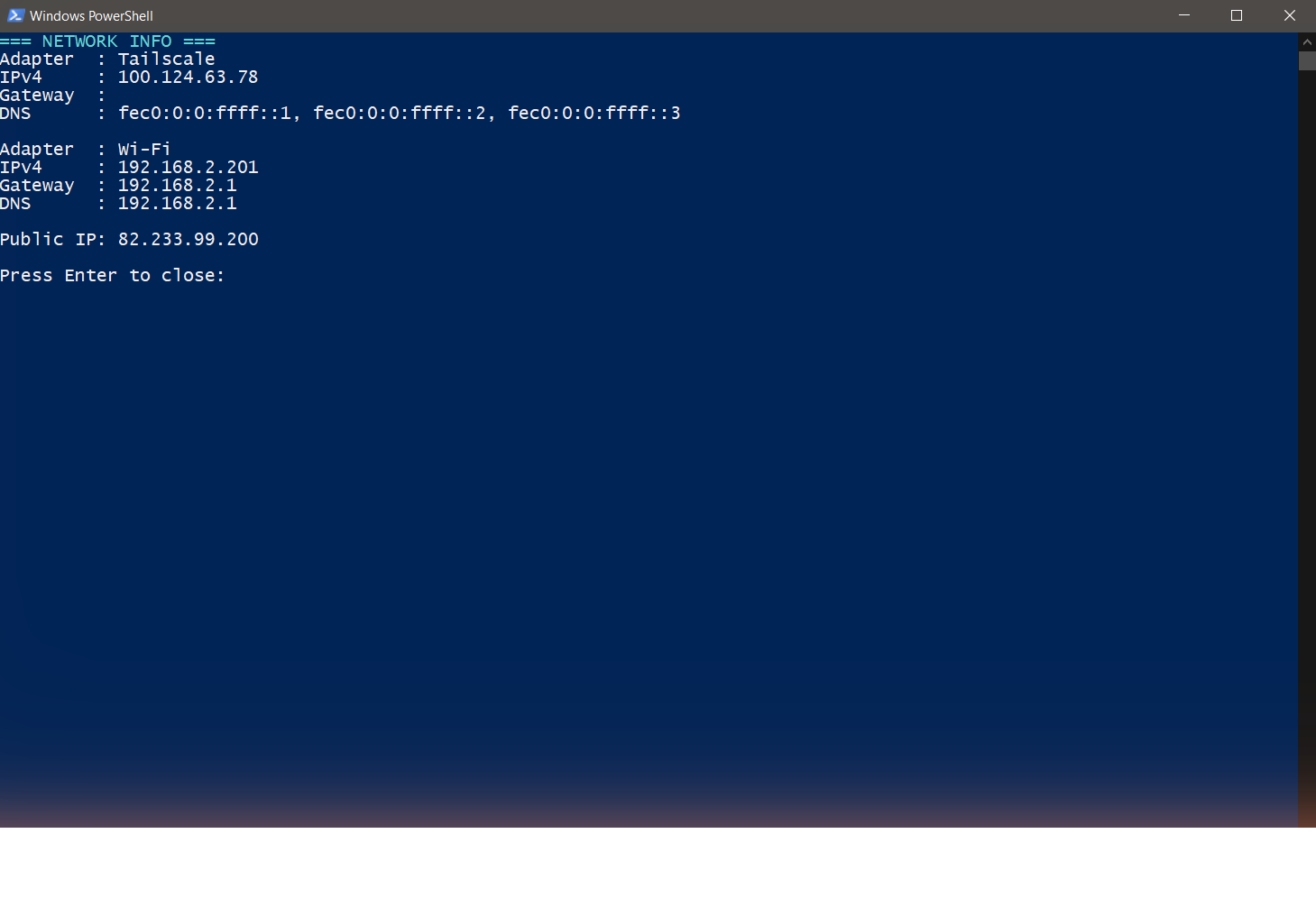
Select a script, read its preview, then choose:
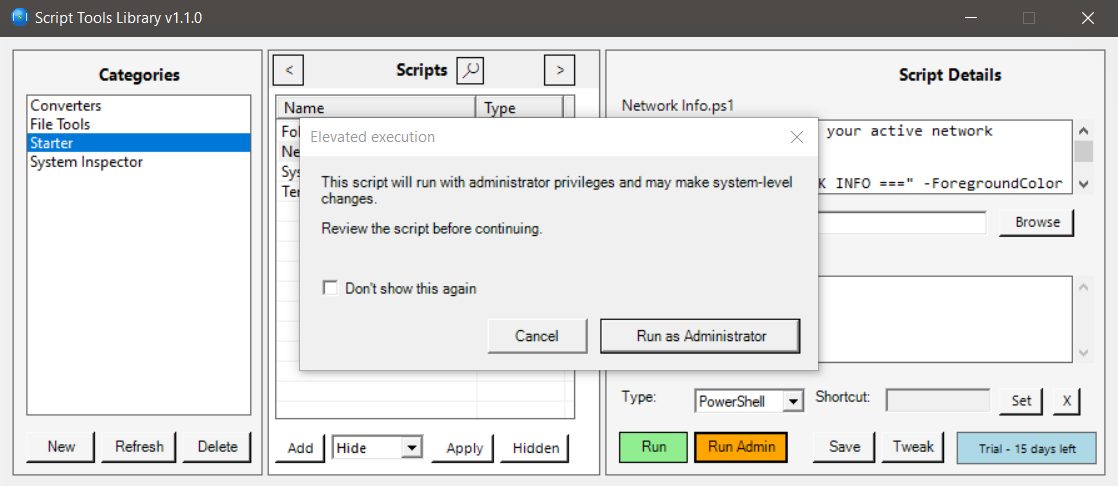
Run Admin never elevates silently. It always shows an "Elevated execution" consent dialog first, naming the script you're about to elevate, and only proceeds after you confirm — followed by Windows' own UAC prompt. Two deliberate clicks stand between you and an elevated script, both times with the script's name in front of you.
The 25 included tools are the starter set; the point of the app is your collection.
.ps1 file. It appears in the scripts list and gets the same treatment as the built-ins: preview, notes, type, shortcut. Consider giving your own scripts a # RISK: first line too — future-you will thank present-you.LaunchScriptsLibrary.exe is not code-signed — signing certificates cost more per year than this tool does, so as a one-person shop we ship unsigned. Windows SmartScreen and some antivirus products are rightly cautious about unsigned executables from small publishers, so a warning on first run is expected behavior, not a malfunction. We won't tell you to whitelist anything — that's your call to make, not ours to ask for. What we can offer is transparency: the product page publishes the SHA-256 hash of the exact release zip so you can verify your download matches the audited build, and every script the app runs is plain text you can read first.↑ Back to top · Questions this page didn't answer? support@toprogos.com